Missing attachments after a migration? Not anymore.
This guide shows a clean Mac Mail to PST conversion—powered by a purpose-built tool (Mail Extractor Pro)—that preserves everything.
Why PST (and why this is tricky from Apple Mail)
Apple Mail speaks MBOX; Outlook speaks PST. That mismatch is the root of most headaches in Mac Mail to PST conversion.
- Apple Mail export limits: There’s no native “Export to PST” button—only MBOX.
- Outlook’s preferred format: Outlook (Windows and Mac) imports PST cleanly, so getting your data into PST is the most direct path.
- Two very different containers: MBOX is a mailbox text format with MIME parts; PST is a structured Outlook database with its own indexing, properties, and limits.
- Where things go wrong: During translation, tools can fumble inline images, large files, Unicode filenames, folder hierarchies, and message metadata (headers, read/unread, timestamps).
What this means for you:
To move from Apple Mail to Outlook without “mystery losses,” you need a converter that’s fluent in both worlds—able to parse every MIME part from MBOX and write a faithful PST that Outlook treats like native data. That’s exactly the gap Mail Extractor Pro is built to bridge.
The #1 Pitfall — Lost or Altered Attachments
Attachments are the first casualties in many Mac Mail to PST conversion attempts. Even when messages appear, files can be missing, renamed, or stripped of context.
What goes wrong (and why):
- Inline vs. regular attachments: Inline images (logos, screenshots) are embedded inside the email body as MIME parts. Some converters treat them as decorative and drop them.
- Nested messages (EML-in-EML): Forwarded emails attached as files can be flattened or detached, breaking conversation context.
- Cloud-linked “attachments”: Links to Drive/OneDrive/SharePoint look like files but are actually URLs; poor tools mis-handle or remove them.
- Large files & timeouts: Big PDFs/ZIPs can trigger partial writes or silent skips.
- Unicode & special characters: Filenames with emojis, CJK characters, or accents may be mangled without proper encoding support.
- Content-type confusion: Non-standard or uncommon MIME types (CAD files, raw media) get renamed, converted, or dropped.
How this shows up after migration:
- Paperclip icon present but no downloadable file
- Broken image boxes where inline graphics should be
- Attachments renamed to
unknown.binor with missing extensions - Forwarded message appears as plain text instead of an attached email
Why this matters:
Losing invoices, contracts, designs, or inline evidence (like annotated screenshots) isn’t just annoying—it can stall projects and create compliance gaps.
Good news:
This is preventable. A MIME-aware, Unicode-savvy tool—like Mail Extractor Pro—parses every message part and writes a faithful PST so Outlook treats attachments exactly as intended.
What to Look For in a Mac Mail → PST Tool (Attachment-Safe Checklist)
Use this quick checklist to avoid the usual gotchas and keep every file intact during Mac Mail to PST conversion.
Must-haves
- MIME-aware parsing: Understands every MIME part (attachments, inline images, alternative bodies) so nothing gets dropped or flattened.
- Attachment fidelity: Preserves file names, types, sizes, and order—no
unknown.bin, no silent skips. - Unicode/DBCS support: Handles accented characters, CJK, RTL scripts, and emoji in subjects, bodies, and attachment filenames.
- Inline image preservation: Keeps logos, screenshots, and signatures displaying inside the message—not as detached files.
- Nested messages (EML-in-EML): Maintains attached emails as attachments, with headers and timestamps intact.
- Folder hierarchy retention: Mirrors your Apple Mail structure in PST (including nested folders) without flattening.
- Metadata integrity: Preserves headers, dates, From/To/CC, read/unread flags, and message IDs.
- Large-mailbox resilience: Supports big attachments and huge mailboxes, with safe PST splitting by size to keep Outlook responsive.
- Robust logging & verification: Clear conversion logs and item counts so you can audit results quickly.
- Safe, local processing: Converts on your Mac without uploading mail to external servers.
Nice-to-haves
- Selective conversion: Pick folders/accounts to speed up migrations and tests.
- Duplicate handling: Smart detection to avoid doubles when re-running batches.
- Performance controls: Throttles and memory management for smoother runs on busy Macs.
- Friendly UI + trial mode: Easy to test with a small sample before committing.
- Active support & updates: Responsive help and regular compatibility updates.
Red flags to avoid
- Vague “attachment support” with no mention of MIME/inline handling
- No Unicode mention (risk of garbled filenames/content)
- No PST size control/splitting (risk of oversized, unstable PSTs)
- Sparse or missing logs (hard to verify what actually converted)
Where Mail Extractor Pro fits
Mail Extractor Pro (macOS) checks every box above: full MIME parsing, precise attachment/inline preservation, Unicode compliance, hierarchy mapping, PST size control, and transparent logs—wrapped in an approachable interface with a free trial and support when you need it.
Meet the Solution — Mail Extractor Pro (for macOS)
Mail Extractor Pro is built specifically to bridge the Apple Mail (MBOX) → Outlook (PST) gap—while keeping every attachment, inline image, and bit of metadata intact.

Why it’s different
- Attachment-accurate: Preserves file names, types, sizes, order—even for big PDFs/ZIPs and unusual MIME types.
- Inline images stay inline: Logos, signatures, and screenshots render inside the message body, not as loose files.
- MIME + Unicode savvy: Handles multipart messages, nested EMLs, and filenames with accents/CJK/emoji without garbling.
- Structure you recognize: Mirrors your Apple Mail folders and subfolders in the resulting PST—no flattening.
- Metadata integrity: Retains headers, timestamps, From/To/CC, and read/unread status for faithful Outlook search and sorting.
- Large mailbox ready: Optional PST splitting by size keeps Outlook responsive and avoids oversize data files.
- Clear audits: Detailed logs and item counts make verification quick and painless.
- Simple UI, quick start: Pick your source, choose PST, convert—no command line or guesswork.
Sources supported
- Apple Mail, MBOX, EML, Thunderbird, Postbox → PST for Outlook on Windows and Mac.
Try it safely
- Free trial to test with your own mail.
- Friendly human support from USL Software (for help, contact our support team; we don’t provide troubleshooting here in the blog).
Step-by-Step — Convert Mac Mail to PST Without Losing Attachments
Pre-migration prep (quick, worth it)
- Back up first: Take a Time Machine/snapshot of your Mac.
- Close Apple Mail: Avoid mid-sync changes while converting.
- Tidy optional: Empty Junk/Trash; archive “bulk” newsletters you don’t need.
- Identify your source: Decide whether you’ll convert directly from Apple Mail (profile) or from exported MBOX files.
Convert with Mail Extractor Pro
- Open Mail Extractor Pro on your Mac.
- Choose source:
- Apple Mail (auto-detects your profile), or
- MBOX/EML/Thunderbird/Postbox if you exported first.
- Select folders to include (you can exclude Junk/Trash or test with one folder).
- Options to review (recommended):
- Split PST File: Enable and choose a size to keep Outlook snappy on very large mailboxes.
- Ignore Empty Folders: On by default.
- Start conversion and let it run.
- Check the log: Confirm item counts and watch for any warnings.
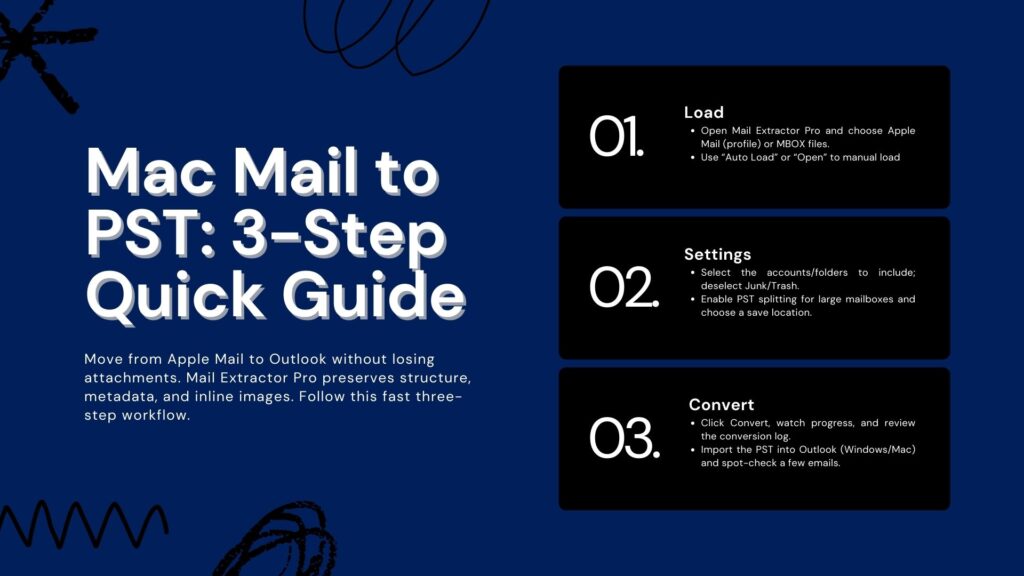
Import the PST into Outlook
- Outlook for Windows:
File → Open & Export → Open Outlook Data File (.pst) → browse to your PST → open. - Outlook for Mac:
If your version supports PST import, use File → Import → Outlook for Windows archive (.pst).
If not, import the PST on a Windows Outlook profile or deliver mail via your mail server (e.g., add the account to Outlook and copy folders across).
Quick verification (2–3 minutes)
- Open a few messages with multiple/large attachments and inline images—confirm they appear and open correctly.
- Check a couple of nested folders to ensure hierarchy is intact.
- Compare folder item counts (± a small variance on system folders is normal).
Pro tips for smooth sailing
- Very large mailboxes: Convert in logical batches (by year/project) and split PSTs to avoid oversize data files.
- Duplicate safety: If you re-run a folder, enable duplicate handling to keep things clean.
- Cloud links vs files: Links (Drive/OneDrive/SharePoint) remain links—ensure sharing permissions are set on the cloud side.
Need help interpreting a log or planning a large migration? Our USL Software Support team can guide you—just share your scenario (no sensitive data).
Preserving Cloud-Based Files & Inline Media
Not every “attachment” is a file. Some are links to cloud storage; others are inline images embedded right in the message body. Handling both correctly is key to a clean Mac Mail to PST conversion.
Cloud-linked items (Drive/OneDrive/SharePoint, etc.)
- What they are: Buttons or file “thumbnails” that point to a URL—there’s no file payload inside the email.
- What to expect after conversion: The link remains a link in Outlook. The file itself still lives in the cloud.
- Your action item: Ensure the recipients (and your new Outlook profile) have sharing permissions for those links. If you need an actual file in the mailbox, download it from the cloud and attach it before conversion.
Inline images (logos, signatures, screenshots)
- How they work: Stored as MIME parts referenced by the email’s HTML (often via
cid:). - What can go wrong: Poor converters detach these into files or drop them entirely, leaving empty boxes.
- With Mail Extractor Pro: Inline images remain embedded in-body so messages render as intended in Outlook.
Nested emails (EML inside an email)
- Why it matters: Forwarded messages attached as files are vital context.
- Correct behavior: They should appear as attached EMLs post-conversion, openable in Outlook.
- Tip: Spot-check a few threads that you know contain forwarded-as-attachment messages.
Filenames, sizes, and special characters
- Potential pitfalls: Accents, CJK, RTL scripts, emoji, or very long names can get mangled.
- What you want: Full Unicode support so filenames and content survive intact.
- Quick check: Open a few messages with unusual filenames and confirm the files open normally.
Verification mini-checklist (2 minutes)
- Open 3–5 emails with:
- A cloud “attachment” → confirm link works.
- Inline logos/signatures → confirm they display in-body.
- A large PDF/ZIP → confirm it opens and size matches.
- A forwarded message as attachment → confirm it opens.
- Compare item counts for a couple of folders and skim the conversion log for warnings.
If anything looks off, keep the sample small and contact USL Software Support with non-sensitive details (mail sizes, macOS/Outlook versions, and a snippet of the log). We’ll point you in the right direction.
Post-Conversion Verification (Quick QA Checklist)
Spend 3–5 minutes here to confirm everything survived the Mac Mail to PST conversion perfectly.
1) Count & structure
- Compare folder item counts with the conversion log (± small variance on system folders is normal).
- Skim a few deeply nested folders to confirm hierarchy is intact.
2) Attachments & inline media
- Open messages with large PDFs/ZIPs and multiple attachments—confirm names, sizes, and file types are correct.
- Check inline images (logos/signatures/screenshots) render inside the message body.
3) Metadata integrity
- Verify From/To/CC, dates/times, subject, and read/unread status.
- Open a forwarded-as-attachment (EML) email to ensure it opens as an attachment.
4) Search & indexing
- In Outlook, search for a specific subject or sender you know exists.
- If results feel thin, give Outlook a moment to finish indexing and try again.
5) Special cases
- Test a couple of messages with Unicode filenames (accents, CJK, emoji).
- Click a cloud-linked “attachment” and confirm the link works (permissions may be required on the cloud side).
6) PST health & performance
- If the mailbox is huge, confirm conversion used PST splitting; large single PSTs can feel sluggish.
- Keep the original Apple Mail data until you’re satisfied with the checks.
If something looks off
- Re-run a small test folder with adjusted options (e.g., splitting).
- Check the conversion log for warnings and share non-sensitive details with USL Software Support for guidance.
Common Issues & Friendly Fixes
Smooth Mac Mail to PST conversion is doable—here’s how to sidestep the usual snags.
1) PST too large / Outlook sluggish
- Symptom: Outlook slows, hangs, or balks at opening the file.
- Fix: Enable PST splitting during conversion (e.g., 10–20GB chunks) and convert by year/project instead of “all at once.”
2) Import option missing in Outlook for Mac
- Symptom: You can’t find “Import PST.”
- Fix: Some Outlook for Mac builds limit PST import. Workarounds:
- Import the PST in Outlook for Windows, then connect the same account and let mail sync, or
- Add both old/new accounts in Outlook and drag/drop folders between them.
3) Attachments appear broken or renamed
- Symptom:
unknown.bin, missing inline images, or attachments won’t open. - Fix: Re-run that folder ensuring MIME/inline preservation is enabled (default in Mail Extractor Pro). Spot-check with a few complex emails.
4) Cloud “attachments” don’t open
- Symptom: Clicks do nothing or show “no access.”
- Fix: These are links, not embedded files. Confirm sharing permissions on Drive/OneDrive/SharePoint after migration.
5) Unicode or special characters garbled
- Symptom: Filenames/subjects with accents/CJK/emoji look wrong.
- Fix: Make sure Unicode support is on (it is by default). Reconvert a small test set and verify.
6) Folder structure flattened or odd
- Symptom: Subfolders moved or merged.
- Fix: Keep “preserve hierarchy” enabled and avoid renaming system folders mid-conversion. Convert in smaller batches if the tree is very deep.
7) Duplicates after multiple test runs
- Symptom: Double messages post-import.
- Fix: Enable duplicate handling before re-running, or import into a clean Outlook profile/folder set.
8) Item counts don’t match exactly
- Symptom: A small discrepancy vs. Apple Mail.
- Fix: System folders and deleted items can differ. Compare user folders first; review the conversion log for skips/warnings.
9) Corrupted source mailbox
- Symptom: Repeatable conversion errors on specific folders.
- Fix: Rebuild/repair the affected Apple Mail mailbox, then reconvert just that folder.
10) Mixed HTML/RTF rendering quirks
- Symptom: Formatting looks off in Outlook.
- Fix: This is usually a viewer difference. Open the same message in Outlook Web for a second opinion; inline images should remain intact if preserved during conversion.
If you hit a wall, share non-sensitive details (macOS/Outlook edition, mailbox size, a small log excerpt) with USL Software Support—we’ll point you to the quickest fix.
Beyond Apple Mail → PST: Other Sources You Can Convert
Mail Extractor Pro isn’t just for Apple Mail. If your team juggles multiple clients or archives, you can standardize everything into PST for Outlook on Windows and Mac.
Supported sources
- MBOX (generic exports from many clients)
- EML (individual message files and folder trees)
- Thunderbird (profiles or exported mail)
- Postbox (profiles or exported mail)
- Apple Mail (direct profile or exported MBOX)
Why this helps
- One workflow, many inputs: Same steps, same options (attachment/inline preservation, hierarchy, PST splitting).
- Unified archives: Store or migrate mixed-client mail into a single, Outlook-friendly format.
- Team mobility: Hand a PST to Windows or Mac users without extra conversions.
- Consistent QA: Familiar logs and verification across every source.
Quick tips per source
- MBOX/EML: Keep folder structure intact when exporting; MEP mirrors it into PST.
- Thunderbird/Postbox: Point MEP at the profile for auto-detection, or export to MBOX first if you prefer a staged approach.
- Large sets: Convert by year/project and enable PST splitting for smoother Outlook performance.
Need advice on a mixed-source scenario? Share non-sensitive details with USL Software Support and we’ll guide you to the simplest path.
FAQs
Q1: Can I export a PST directly from Apple Mail?
A: No. Apple Mail only exports MBOX. That’s why a dedicated converter is required for Mac Mail to PST conversion.
Q2: Will inline images and signatures be preserved?
A: Yes—when converted with a MIME-aware tool like Mail Extractor Pro, inline graphics remain embedded in the message body, not detached or dropped.
Q3: Does PST work for both Outlook on Windows and Outlook on Mac?
A: Yes. PST is native to Outlook on Windows and importable by many Outlook for Mac builds. If your Mac build lacks PST import, import via Outlook for Windows or copy folders between accounts after adding both to Outlook.
Q4: What about cloud “attachments” (Drive/OneDrive/SharePoint)?
A: Those are links, not embedded files. They remain links after migration; ensure sharing permissions are set on the cloud service.
Q5: Are attachment names, sizes, and types preserved?
A: Yes—attachment fidelity (name, type, size, order) is preserved, including large PDFs/ZIPs and uncommon MIME types.
Q6: Will my folder hierarchy and read/unread status carry over?
A: Yes. Folder trees, metadata, headers, timestamps, and read/unread flags are retained.
Q7: How do I handle very large mailboxes?
A: Convert in logical batches (by year/project) and enable PST splitting to keep Outlook responsive.
Q8: Are Unicode filenames (accents, CJK, emoji) supported?
A: Yes—full Unicode/DBCS support preserves subjects, bodies, and attachment filenames.
Q9: Is my mail uploaded to the cloud during conversion?
A: No. Mail Extractor Pro converts locally on your Mac; your data stays on your machine.
Q10: Item counts don’t match exactly—what now?
A: Small variances in system folders are normal. Compare user folders, review the conversion log, and if needed, re-run a small test set or contact USL Software Support with non-sensitive details.
Q11: Can I convert only certain folders?
A: Yes—use selective conversion to test first or exclude Junk/Trash.
Q12: Is there a trial and what licenses are available?
A: Yes—there’s a free trial. Licenses are available for personal and business use.
Key Takeaways
- Apple Mail ≠ PST: Apple Mail exports MBOX only, so a dedicated converter is required for Mac Mail to PST conversion.
- Attachments are the danger zone: Most failures involve missing or altered attachments and inline images—choose a MIME-aware tool to avoid this.
- Fidelity matters: Preserve filenames, sizes, types, inline graphics, nested EMLs, metadata, and folder hierarchy for a true one-to-one migration.
- Scale smartly: For large mailboxes, split PSTs and convert in batches to keep Outlook fast and stable.
- Trust but verify: Use logs and a quick post-conversion QA to confirm counts, attachments, and searchability.
- The simplest path: Mail Extractor Pro delivers attachment-accurate, Unicode-savvy, local conversions for Outlook on Windows and Mac.
Call to Action
Ready to move without losing a single attachment?
Try Mail Extractor Pro (Free Trial) and run a quick proof with your own data:
- Pick one folder with mixed attachments (PDFs, ZIPs, inline images).
- Convert to PST with default settings (attachment + inline preservation on).
- Import into Outlook and spot-check a few messages—you’ll see everything intact.
For larger moves, convert by year/project or enable PST splitting to keep Outlook speedy.
Licensing: Personal and Business licenses available.
Questions (non-technical)? Our team is happy to help you choose the right fit.
Need assistance? Please contact USL Software Support—they’ll guide you step by step.
Make the jump from Mac Mail to Outlook with confidence—start your free trial of Mail Extractor Pro today.