
If you’re trying to convert OST to PST without Outlook, chances are you’re dealing with an inaccessible mailbox, a deleted Outlook profile, or an orphaned OST file that simply won’t open. Since OST (Offline Storage Table) files are tightly linked to their original Outlook profile and Exchange server, accessing their data without Outlook becomes a real challenge.
The good news is that it is possible to convert OST to PST without Outlook—but not all methods are equally effective. Some manual approaches come with limitations like partial data recovery, complex steps, or risk of data loss, especially when dealing with orphan OST files.
In this step-by-step guide, you’ll learn the safest and most practical ways to convert OST to PST without Outlook. We’ll walk you through both manual workarounds and a reliable professional solution, so you can choose the method that best fits your situation and recover your data without complications.
What is an OST File and Why Convert It to PST?
An OST (Offline Storage Table) file is a local copy of your mailbox data created by Microsoft Outlook when connected to Exchange Server, Microsoft 365, or IMAP accounts. It allows users to access emails, contacts, calendars, and other data even when they are offline. Once reconnected, the changes sync automatically with the server.
However, OST files come with a major limitation—they are profile-dependent and encrypted, meaning they cannot be opened directly on another system or Outlook profile. This is where the need for conversion arises.
On the other hand, a PST (Personal Storage Table) file is a portable data file that can be easily imported, opened, and accessed in Outlook without requiring the original server connection.
Why Convert OST to PST?
- Access mailbox data without Exchange Server
- Recover data from orphaned or inaccessible OST files
- Migrate emails to another system or Outlook profile
- Create a secure backup of mailbox data
- Avoid data loss in case of server failure or account deletion
In short, converting OST to PST gives you full control over your email data—without being tied to the original environment.
Can You Convert OST to PST Without Outlook?
The short answer is yes—you can convert OST to PST without Outlook, but there’s a catch: not every method works in every situation.
OST files are designed to function with a specific Outlook profile and Exchange/IMAP account. Because of this dependency, Microsoft doesn’t provide a direct way to convert OST to PST without using Outlook. That’s why most “manual” methods you’ll find are actually workarounds—not true conversions.
Understanding Your Options
When Outlook is unavailable, you’re left with two practical approaches:
1. Manual Workarounds
- Indirect methods like IMAP sync or third-party viewers
- Require technical steps and specific conditions
- Often fail with orphaned OST files
2. Professional OST to PST Converter Tools
- Designed specifically for this scenario
- No Outlook installation required
- Can handle orphaned, damaged, or inaccessible OST files
Important Limitations to Know
Before you choose a method, be clear about these realities:
- Orphan OST files cannot be converted manually
If the original account or server is gone, manual methods won’t work. - Data loss risk is real with workarounds
Attachments, metadata, or folder structure may not be preserved. - Time vs reliability trade-off
Manual methods are free but slow and unreliable; tools are faster and accurate.
What Should You Choose?
If your OST file is still connected to an active account, you might get away with a manual workaround.
But if you’re dealing with:
- Deleted Exchange account
- Crashed server
- Corrupt or orphan OST file
Then skipping straight to a professional solution will save you time—and prevent permanent data loss.
Method 1: Convert OST to PST Without Outlook Using OST Viewer + Export Trick
This method is often suggested as a “free” way to convert OST to PST without Outlook. It involves using an OST viewer tool to access mailbox data and then attempting to export or recreate it in PST format through indirect means.
But here’s the reality: this is not a true conversion method—it’s more of a workaround with significant limitations.
How This Method Works
The idea is simple:
- Open the OST file using a free OST Viewer tool
- Preview mailbox items like emails, contacts, and calendars
- Manually extract or recreate data into another email client or format
- Save or rebuild the data into PST (if supported)
Step-by-Step Process
Step 1: Download and install a free OST Viewer tool
- Many tools allow you to open and read OST files without Outlook
Step 2: Load your OST file
- Browse and select the inaccessible or orphan OST file
Step 3: Preview mailbox data
- Check emails, attachments, folders, contacts, etc.
Step 4: Export or copy data manually
- Some tools allow limited export (like EML, MSG, or HTML)
- Otherwise, you may need to copy content manually
Step 5: Recreate PST file (indirectly)
- Import exported files into an email client that supports PST
- This step is often incomplete or inconsistent
Limitations of This Method
Let’s be honest—this approach has more downsides than benefits:
- ❌ No direct PST export in most free tools
- ❌ Time-consuming manual effort
- ❌ Attachments and metadata may be lost
- ❌ Folder hierarchy often breaks
- ❌ Not suitable for large OST files
- ❌ Fails with encrypted or severely corrupted OST files
When Does This Method Work?
This method may only be useful if:
- You need to recover a few emails
- Your OST file is small and not heavily structured
- You don’t care about perfect data integrity
Reality Check
If your goal is a complete, accurate, and fast conversion, this method will likely frustrate you. It’s best seen as a last-resort option for partial recovery—not a reliable solution.
Method 2: Use IMAP Sync Workaround (Indirect Method)
This is another commonly suggested way to convert OST to PST without Outlook, but don’t let the wording fool you—this method doesn’t actually convert the OST file directly. Instead, it uses email synchronization as a bridge.
It can work, but only under very specific conditions.
How This Method Works
The idea behind IMAP sync is:
- Sync your OST mailbox data to a mail server using IMAP
- Then access that data from another email client
- Export it into PST format from there
In simple terms, you’re moving data through a server, not converting the OST file itself.
Step-by-Step Process
Step 1: Access the original email account
- You must have valid login credentials
- The account must still be active
Step 2: Configure the account with IMAP enabled
- Use another email client (like Thunderbird)
- Sync all mailbox data from the server
Step 3: Wait for full synchronization
- This may take hours depending on mailbox size
Step 4: Export or migrate data
- Move emails into a format that can later be imported into Outlook PST
Limitations of IMAP Workaround
Here’s where most users hit a wall:
- ❌ Does not work with orphan OST files
(No server = no sync) - ❌ Requires active account access
If credentials are lost, you’re stuck - ❌ Slow and bandwidth-dependent
Large mailboxes can take hours or days - ❌ Incomplete data migration
IMAP usually skips:- Calendar
- Contacts
- Notes
- ❌ Risk of sync errors or missing emails
When Should You Use This Method?
This method only makes sense if:
- Your email account is still active
- Your OST file is fully synced with the server
- You only need emails (not full mailbox data)
Straight Talk
This workaround is often overhyped. It’s not a reliable solution for most real-world cases—especially when users are trying to recover data from inaccessible or orphan OST files.
Method 3: Convert OST to PST Without Outlook Using Professional Tool (Recommended)
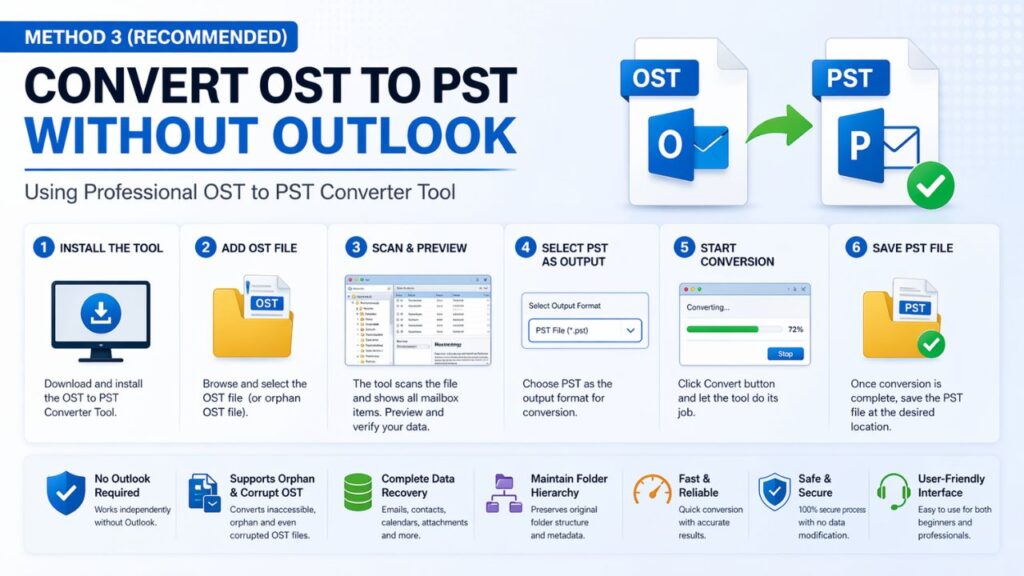
Let’s cut through the noise—if your goal is to convert OST to PST without Outlook reliably, this is the method that actually works in real-world situations.
Professional OST to PST converter tools are built specifically to handle orphaned, inaccessible, or even corrupted OST files—without needing Outlook or an Exchange connection.
Why This Method Works
Unlike manual workarounds, these tools:
- Directly read OST file structure
- Extract mailbox data independently
- Convert everything into a clean PST file
No server. No profile dependency. No shortcuts.
Key Features to Look For
Before choosing a tool (including your own), make sure it offers:
- ✅ No Outlook installation required
- ✅ Supports orphan OST files
- ✅ Preserves folder hierarchy and metadata
- ✅ Converts emails, contacts, calendars, attachments
- ✅ Bulk conversion support
- ✅ Preview option before conversion
- ✅ Fast and user-friendly interface
Step-by-Step Process
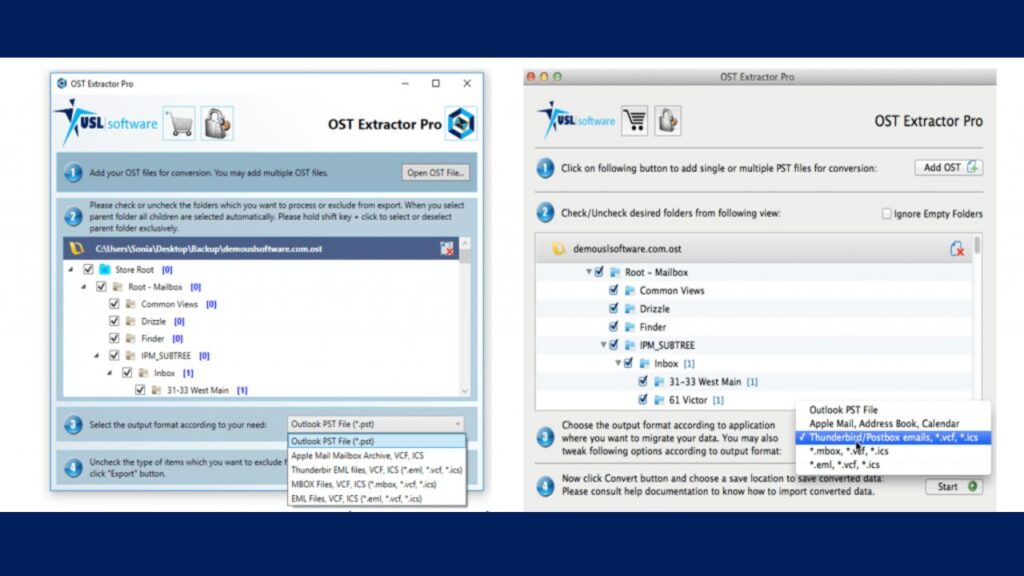
Step 1: Install OST Extractor Pro on Mac or Windows (Both version available)
- Download and launch the software on your system
Step 2: Add the OST file
- Browse and select the orphan or inaccessible OST file
Step 3: Scan and preview data
- The tool will analyze the file and display mailbox items
- Verify emails, attachments, contacts, etc.
Step 4: Choose PST as output format
- Select export option → PST
Step 5: Start conversion
- Click convert and wait for the process to complete
Step 6: Save the PST file
- Choose a destination path and save
Why This Is the Recommended Method
- ✔ Works even when Outlook is not installed
- ✔ Handles orphan and corrupted OST files
- ✔ Maintains complete data integrity
- ✔ Saves hours of manual effort
- ✔ Suitable for both individuals and businesses
Reality Check
Yes, this method is not free—but it’s the only approach that guarantees accuracy and completeness.
If your data matters (and it usually does), trying to “hack” your way through manual methods often ends up costing more time—and sometimes permanent data loss.
Why Manual Methods Often Fail
On paper, manual methods to convert OST to PST without Outlook sound appealing—they’re free and widely shared across forums. But in practice, they fail more often than they succeed.
Here’s why.
1. OST Files Are Not Designed for Manual Access
OST files are tightly bound to:
- The original Outlook profile
- The Exchange or IMAP server
- User authentication credentials
Once that link breaks, the OST becomes orphaned—and manual methods simply don’t have the capability to decode or rebuild that relationship.
2. No Direct Conversion Mechanism
Let’s be clear:
There is no native or manual way to directly convert an OST file into PST without Outlook.
All manual approaches are:
- Indirect
- Incomplete
- Dependent on external conditions
That’s a weak foundation for something as critical as email data.
3. High Risk of Data Loss
Manual workarounds often fail to preserve:
- Email formatting
- Attachments
- Folder hierarchy
- Metadata (timestamps, sender info, etc.)
You might recover some data—but rarely everything, and almost never in its original structure.
4. Doesn’t Work for Orphan or Corrupt OST Files
This is where most users get stuck.
If your situation involves:
- Deleted Exchange account
- Outlook profile removed
- Server crash
- Corrupted OST file
Manual methods won’t just be difficult—they’ll be completely ineffective.
5. Time-Consuming and Error-Prone
Even when manual methods partially work:
- The process is slow
- Requires technical knowledge
- Needs constant monitoring
- Often results in repeated attempts
You’re investing hours with no guarantee of success.
6. Not Scalable for Large Mailboxes
If your OST file is large (which most are), manual methods:
- Become extremely slow
- May crash or freeze
- Fail mid-process
This makes them impractical for business or professional use.
Bottom Line
Manual methods aren’t just inconvenient—they’re unreliable by design.
If you’re dealing with important data, relying on these approaches is a gamble. And in many cases, users only realize this after losing critical emails or wasting valuable time.
How to Choose the Best OST to PST Converter
Not all tools are created equal—and this is where many users make a costly mistake. They download the first converter they find, only to end up with incomplete data, corrupted PST files, or hidden limitations.
If you’re serious about converting OST to PST without Outlook, you need to choose your tool carefully.
1. No Outlook Dependency
This should be non-negotiable.
A good tool must:
- Work independently of Outlook
- Not require Exchange connectivity
- Support completely orphaned OST files
If a tool still depends on Outlook in the background, it defeats the purpose.
2. Complete Data Accuracy
The tool should preserve:
- Emails (with formatting)
- Attachments
- Contacts, calendars, notes
- Folder hierarchy
- Metadata (To, From, Date, Subject)
Anything less means partial recovery—and that’s a problem.
3. Preview Before Conversion
A built-in preview feature helps you:
- Verify data before exporting
- Ensure the OST file is readable
- Avoid wasting time on broken files
No preview = blind conversion.
4. Support for Large and Corrupt OST Files
Real-world OST files are often:
- Large (10GB, 20GB or more)
- Slightly or heavily corrupted
Make sure the tool can:
- Handle large files smoothly
- Recover data from damaged OST files
5. Selective and Bulk Conversion Options
Look for flexibility:
- Convert entire mailbox or selected folders
- Batch conversion for multiple OST files
This is especially important for IT teams and businesses.
6. Speed and Performance
A good converter should:
- Process data quickly
- Not freeze or crash mid-conversion
- Provide progress tracking
Slow tools are frustrating—and risky.
7. Simple, User-Friendly Interface
You shouldn’t need technical expertise to recover your data.
The tool should be:
- Easy to install
- Straightforward to use
- Designed for both beginners and professionals
8. Reliable Support and Updates
Things can go wrong. When they do, support matters.
Check for:
- Active customer support
- Regular updates
- Clear documentation
Pro Tip (Don’t Skip This)
Always test the demo version before buying.
It helps you:
- Validate features
- Check accuracy
- Build confidence in the tool
Bottom Line
Choosing the right OST to PST converter isn’t just about features—it’s about trusting the tool with your data.
Go with a solution that’s proven, transparent, and built specifically for handling OST files without Outlook.
Benefits of Converting OST to PST Without Outlook
When you convert OST to PST without Outlook, you’re not just changing a file format—you’re removing the biggest limitation tied to OST files: dependency.
Here’s what you actually gain from the conversion.
1. Access Data Without Exchange Server
OST files rely on the original server and profile. Once that connection is gone, access is gone too.
By converting to PST:
- You can open the file anytime in Outlook
- No server or account is required
- Full mailbox access is restored
2. Recover Data from Orphaned OST Files
This is one of the biggest advantages.
If your OST file is:
- Orphaned
- Inaccessible
- Disconnected from the original account
Conversion to PST allows you to recover and reuse that data, instead of losing it permanently.
3. Easy Migration and Portability
PST files are portable by design.
You can:
- Move them between systems
- Import into different Outlook profiles
- Use them for migrations (Exchange, Microsoft 365, etc.)
No restrictions. No dependencies.
4. Reliable Backup of Mailbox Data
Keeping data only in OST format is risky.
By converting to PST, you create:
- A secure offline backup
- A reusable archive
- Protection against server crashes or account deletion
5. Maintain Data Integrity and Structure
With the right method (especially professional tools), you can preserve:
- Folder hierarchy
- Email formatting
- Attachments
- Metadata
That means your mailbox looks and functions exactly as before.
6. Save Time and Avoid Complexity
Instead of dealing with:
- Server reconnect issues
- Profile errors
- Manual workarounds
You get a direct, clean solution that simplifies the entire process.
Bottom Line
Converting OST to PST without Outlook gives you control, flexibility, and security over your email data.
It’s not just a workaround—it’s often the only practical way to access and protect important mailbox information when Outlook or the original server isn’t available.
FAQs On Convert OST to PST Without Outlook
Here are clear answers to the most common questions users have when trying to convert OST to PST without Outlook:
Can I open an OST file without Outlook?
Yes, but only with the help of third-party tools.
OST files are not designed to be opened independently because they are linked to a specific Outlook profile and server. Without Outlook, you’ll need an OST viewer or converter to access the data.
Is it safe to convert OST to PST without Outlook?
Yes—if you use a reliable method.
Manual methods → Risk of incomplete data or loss
Professional tools → Safe, accurate, and preserve data integrity
The safety depends entirely on the approach you choose.
Can I convert an orphan OST file to PST?
Yes, but not manually.
Orphan OST files (disconnected from the original account) cannot be converted using free or native methods. You’ll need a professional OST to PST converter that can read the file independently.
What is the best way to convert OST to PST without Outlook?
The most effective method is using a professional OST to PST converter tool.
It offers:
Direct conversion
No Outlook dependency
Support for orphan and corrupt OST files
Complete data recovery
Manual methods are only suitable for very limited scenarios.
Will all my data be preserved after conversion?
With a good tool—yes.
You can retain:
– Emails and attachments
– Contacts and calendars
– Folder structure
– Metadata (date, subject, sender)
Manual methods usually fail to preserve all of this.
Can I convert multiple OST files at once?
Yes, many advanced tools support bulk conversion, allowing you to process multiple OST files in a single operation—saving time and effort.
Conclusion
If you’re looking to convert OST to PST without Outlook, the key is choosing the right approach for your situation.
Manual methods may seem appealing, but they come with serious limitations and risks—especially when dealing with orphan or inaccessible OST files.
For a fast, accurate, and hassle-free conversion, using a professional solution is the most practical choice. It ensures complete data recovery, preserves structure, and eliminates dependency on Outlook or Exchange Server.
If your email data matters, don’t leave it to trial and error—use a method that actually delivers results.